Note: This article is formatted as HTML body content only, in standard American English, and ready for web publishing after styling.
If you have ever stared at a plain Google Docs page and thought, “Wow, this document has the visual charisma of unbuttered toast,” you are not alone. Sometimes text needs a little help. A border can make a quote stand out, turn a boring note into a callout, give instructions more structure, or make a flyer look less like it was assembled during a power outage.
The catch is that Google Docs does not offer a giant shiny button labeled Put Fancy Border Around My Text. Instead, you have to use a few clever built-in tools. The good news is that they are simple, flexible, and surprisingly useful once you know where to click.
In this guide, you will learn five simple ways to put a border around text in Google Docs, when each method works best, and how to avoid the little formatting traps that make people mutter at their screens. Whether you need a quick paragraph border, a polished text box, or a decorative frame for a special document, there is a method here with your name on it.
Why Add a Border Around Text in Google Docs?
A border is more than decoration. It helps readers notice important content fast. You might add a border around text in Google Docs to highlight a quote, separate an announcement, frame a heading, create a worksheet box, build a flyer, or make a handout easier to scan.
In practical terms, borders do three things really well: they create emphasis, add structure, and improve readability. When a section looks visually different, people instinctively pay attention. That is useful in resumes, lesson plans, reports, proposals, newsletters, and just about any document that needs a little order.
Now let’s get to the good stuff: the five easiest methods.
1. Use Paragraph Borders and Shading for the Fastest Border
If your goal is simply to put a border around a paragraph or short block of text, this is usually the fastest and cleanest option. It is built right into Google Docs, which means no drawing tools, no dragging boxes around, and no weird alignment drama.
How to do it
Select the paragraph or place your cursor inside it. Then go to Format > Paragraph styles > Borders and shading. From there, you can choose which sides get a border, set the line width, pick a border color, choose a solid, dotted, or dashed line, and add padding so the text is not hugging the border like it is afraid of being alone.
Why this method is great
This is the best choice when you want a border around normal text that stays fully editable in the document. It works especially well for quotes, announcements, short instructions, reminders, and mini callout sections inside blog drafts or classroom materials.
Best use cases
Use paragraph borders when you want a neat, professional frame around text without turning that text into an object. If you are writing a report and want to highlight “Key Takeaways,” this method is ideal. It is fast, stable, and refreshingly low-maintenance.
A small warning
This method is designed for paragraphs, not for full-page borders. So if you are trying to create a dramatic frame around half the page, paragraph borders may feel a little too polite for the job.
2. Insert a Drawing Text Box for a Movable Border
If you want something more flexible, a text box in Google Docs is a strong option. This method works through the Drawing tool and is perfect when you want your bordered text to behave more like a graphic element than a regular paragraph.
How to do it
Go to Insert > Drawing > New. In the Drawing window, click the Text box icon, drag to create the box, and type your text. Then customize the border color, border thickness, and fill color. If you do not want a background color, set the fill to transparent. Click Save and Close, and the text box will appear in your document.
Why this method is useful
This is excellent for labels, pull quotes, side notes, mini banners, and visual callouts. Because the text sits inside a box object, you can move it around more freely than a regular paragraph border. It is handy when layout matters and you want more control over placement.
Best use cases
Choose this method for posters, study guides, worksheets, event handouts, and internal documents that need a little design flair. It is also helpful if you want a border around text that is separate from the normal document flow.
The trade-off
The biggest drawback is that editing can feel less natural than editing standard document text. If you expect to revise the wording a lot, this may not be your forever method. Think of it as stylish, but slightly moodier.
3. Use a 1×1 Table for a Clean Box Around Larger Text
This trick is simple, reliable, and surprisingly popular. Insert a single-cell table, place your text inside it, and customize the table border. Voilà: instant border around text in Google Docs.
How to do it
Go to Insert > Table and choose a 1×1 table. Click inside the cell and type or paste your text. Then open Table properties or use the table formatting controls to adjust the border color, border width, and cell padding. You can also resize the cell by dragging its edges.
Why this method works so well
If you need to put a border around a longer chunk of text, this method is often better than a text box. The text still behaves like document content, and the box can expand naturally as the text grows. That makes it very practical for instructions, summaries, sidebars, or boxed sections inside longer documents.
Best use cases
Use a one-cell table for reading passages, assignment boxes, worksheet prompts, featured notes, or any section that might grow over time. It is also a great workaround when you want a page-like border but really just need a large content box.
What to watch for
Tables are useful, but they can sometimes affect spacing in ways that feel a tiny bit fussy. If your box looks cramped, increase the cell padding. If it looks too wide, adjust the cell width or page margins. A table is dependable, but it definitely has opinions.
4. Draw a Rectangle Shape and Send It Behind the Text
This method is great when you want the border to look more like a design element on the page rather than a container that holds the text. In other words, instead of putting text inside a box, you place a border shape behind existing text. Sneaky? Yes. Effective? Also yes.
How to do it
Insert a drawing or shape, usually a rectangle, then customize the line style and set the fill color to transparent. Once the shape is inserted into the document, position it around your text and use the layout option to place it behind text.
Why people like this workaround
It gives you more visual freedom. You can create a simple framed look around a poem, quote, announcement, or featured section without turning the text itself into a drawing object. This is particularly useful when you already wrote the text and do not want to paste it into a box or table.
Best use cases
Try this when you are designing a cover page, a classroom handout, a title page, a highlighted excerpt, or a promotional one-sheet. It is also helpful when you want a border that feels decorative but still keeps your actual text in the main document.
The catch
Positioning can take a little patience. Sometimes the border moves a hair too far left, or the text decides to wrap in a way that suggests mild rebellion. Once you get it lined up, though, it looks polished.
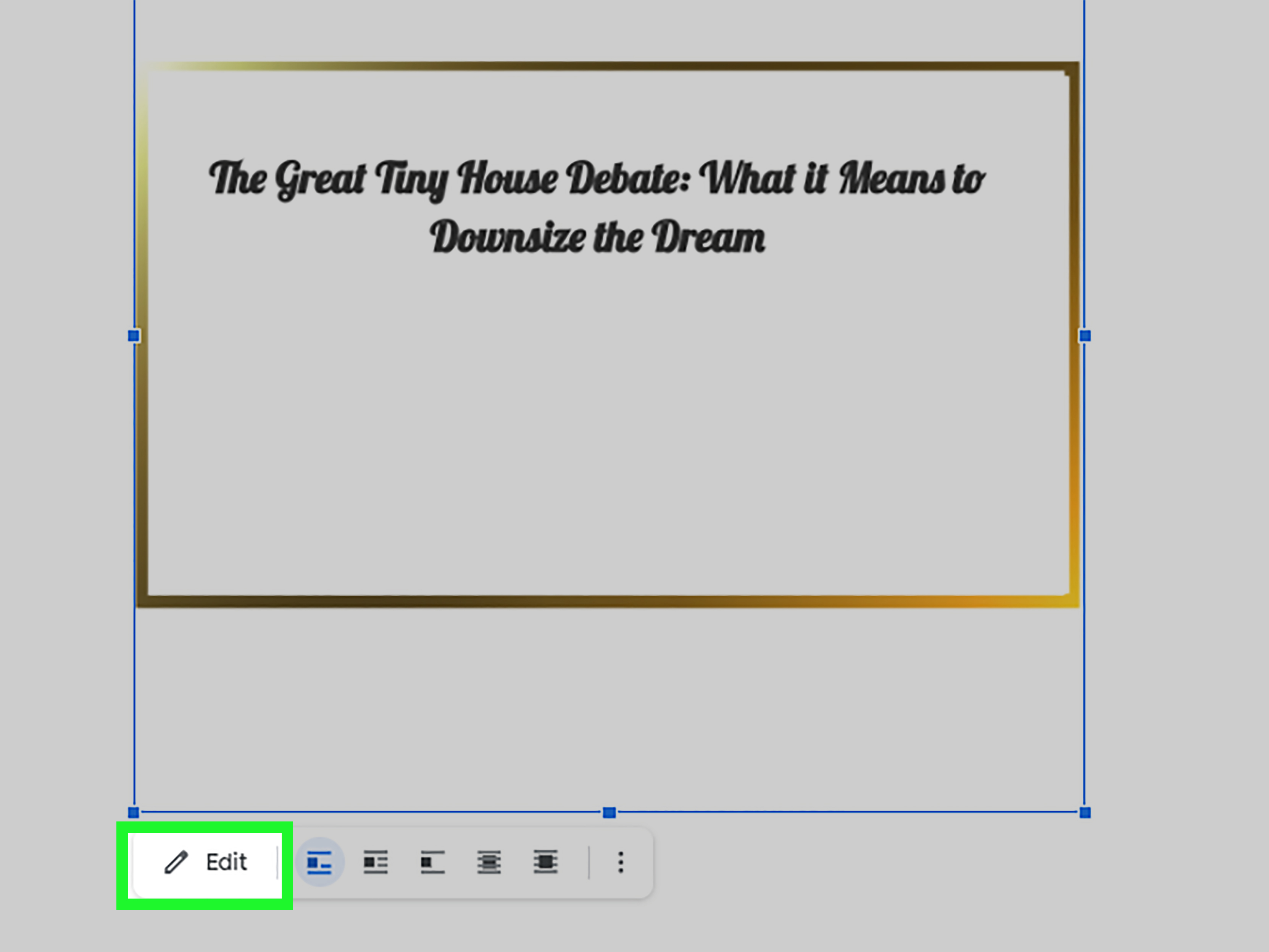
5. Use a Decorative Border Image With a Text Box Inside
If you want something prettier than a plain line border, a decorative border image is the method to use. This is not the fastest option, but it can be the most visually impressive. Think invitations, certificates, announcements, menus, or anything that needs to look a little dressed up.
How to do it
Open Insert > Drawing > New, then insert an image of a border. After that, create a text box inside the image and type your content. Resize both elements so the text fits neatly inside the frame. Save and close the drawing when you are done.
Why this method stands out
This gives you far more visual personality than a plain paragraph border or table cell. It is perfect when the document needs style, not just structure. A decorative border can make a simple announcement feel intentional and polished.
Best use cases
Use this for holiday letters, printable signs, event programs, menus, certificates, and social-style handouts. It is not ideal for heavy editing or long reports, but it absolutely shines for documents where appearance matters.
One honest downside
This method is more restrictive. Because the text lives inside a drawing, it is not as flexible as normal document text. So if you are still rewriting every sentence three times, maybe wait until the content is final before getting fancy.
Which Method Is Best?
Here is the easy answer. If you want a border around a normal paragraph, use Paragraph Borders and Shading. If you want a border around a larger block of editable text, use a 1×1 table. If you want a movable design element, use a text box. If you want a border that frames existing text, use a rectangle behind the text. And if you want something decorative, go with a border image plus text box.
In short, the best method depends on whether your priority is speed, flexibility, editability, or style. Google Docs may not offer a one-click page border feature, but it does give you enough tools to fake it beautifully.
Common Mistakes to Avoid
The first mistake is choosing the prettiest method when you actually need the easiest one. If you are formatting a school report or work proposal, a paragraph border or one-cell table is usually smarter than a decorative drawing.
The second mistake is forgetting padding. A border with no breathing room makes text look trapped. Add a little space inside the box and your document will instantly look more professional.
The third mistake is overdecorating. A giant dotted neon border may sound exciting in theory, but in practice it can make your document look like it lost a bet. Keep the style aligned with the purpose of the document.
Practical Experience: What People Learn After Actually Using These Border Tricks
Once people start using borders in Google Docs regularly, a pattern usually appears. Everyone begins with the text box because it sounds obvious. “I need a box around text, so I will use a text box.” Logical. Elegant. Slightly chaotic. Then they discover that text boxes are fantastic for small callouts but not always ideal for content that changes a lot. The moment you add one more sentence, the box may need resizing, repositioning, and a brief emotional support speech.
That is why many experienced Google Docs users quietly fall in love with the one-cell table. It is not glamorous. Nobody has ever burst into a room shouting, “Good news, I inserted a 1×1 table!” But it works. It grows with the text, stays aligned, and behaves more like regular document content. For practical writing, that is a huge win.
Another common experience is realizing that paragraph borders are wildly underrated. At first glance, they look basic. Then you use them once for a quote, reminder, or “important note” section, and suddenly you understand the appeal. They are fast, clean, and do not make you leave the document flow. It is the formatting equivalent of finding out the quiet person at the party is secretly the most competent one in the room.
People also learn very quickly that decorative border images should be used at the right time. They look wonderful for certificates, flyers, class activities, and announcements. But if the content is still changing every ten minutes, a decorative frame can become a tiny prison. Every edit means more adjusting, more resizing, and more negotiations with the layout. It is best to save that method for documents that are mostly finished.
There is also a real-world lesson about restraint. When users first discover border width, dash styles, and color choices, it is tempting to test every option at once. Before long, the document looks like a parade float designed by a highlighter. Most of the time, the best-looking border is simple: a clean line, moderate padding, and enough contrast to stand out without stealing the whole show.
Perhaps the biggest practical takeaway is this: the “best” way to put a border around text in Google Docs depends less on the tool itself and more on how the text will be used later. Will it be edited often? Will it move around the page? Does it need to print neatly? Is it formal, decorative, or purely functional? Once you answer those questions, the right method becomes much easier to choose.
So yes, adding a border in Google Docs can begin as a tiny formatting task. But after a few documents, it turns into a surprisingly useful design skill. And honestly, that is a pretty good return on investment for something that starts with a rectangle.
Conclusion
Putting a border around text in Google Docs is not difficult once you know which tool matches the job. For speed, use paragraph borders. For longer text, use a single-cell table. For movable design elements, use a text box. For framing existing text, use a rectangle behind it. And for polished, decorative layouts, use a border image with text inside.
The real trick is not just knowing how to add a border, but knowing which border method saves time and produces the cleanest result. Once you get comfortable with these five techniques, your Google Docs files will look more intentional, easier to read, and far less likely to resemble a wall of unformatted despair.